
|
Definition and UsageThe Use the Tip: Use CSS to style lists. Tip: For ordered lists, use the <ol> tag. Browser Support
Global AttributesThe Event AttributesThe |

How to create HTML <ul> Tag
It is an An unordered HTML list.
index.html
Example:
HTML
 <ul>
  <li>Coffee</li>
  <li>Tea</li>
  <li>Milk</li>
</ul> Output should be:
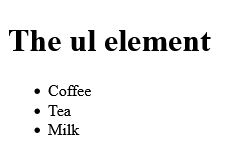
How to Set the different list style types (with CSS) on HTML <ul> Tag
All the different list types for ul with CSS.
index.html
Example:
HTML
<!DOCTYPE html>
<html>
<body>

<h1>All the different list types for ul with CSS</h1>

<ul style="list-style-type:circle">
  <li>Coffee</li>
  <li>Tea</li>
  <li>Milk</li>
</ul>

<ul style="list-style-type:disc">
  <li>Coffee</li>
  <li>Tea</li>
  <li>Milk</li>
</ul>

<ul style="list-style-type:square">
  <li>Coffee</li>
  <li>Tea</li>
  <li>Milk</li>
</ul>

</body>
</html>Output should be:

How to Expand and reduce line-height in lists (with CSS) on
Modify lineheight of lists with CSS.
index.html
Example:
HTML
<!DOCTYPE html>
<html>
<body>

<h1>Modify lineheight of lists with CSS</h1>

<p>Expand line height in a list:</p>
<ul style="line-height:180%">
  <li>Coffee</li>
  <li>Tea</li>
  <li>Milk</li>
</ul>

<p>Reduce line height in a list:</p>
<ul style="line-height:80%">
  <li>Coffee</li>
  <li>Tea</li>
  <li>Milk</li>
</ul>

</body>
</html>Output should be:

How to Create a list inside a list (a nested list) on HTML <ul> Tag
A list inside another list.
index.html
Example:
HTML
<!DOCTYPE html>
<html>
<body>

<h1>A list inside another list</h1>

<ul>
  <li>Coffee</li>
  <li>Tea
    <ul>
      <li>Black tea</li>
      <li>Green tea</li>
    </ul>
  </li>
  <li>Milk</li>
</ul>

</body>
</html>Output should be:

How to Create a more complex nested list on
A list in a list in a list.
index.html
Example:
HTML
<!DOCTYPE html>
<html>
<body>

<h1>A list in a list in a list</h1>

<ul>
  <li>Coffee</li>
  <li>Tea
    <ul>
      <li>Black tea</li>
      <li>Green tea
        <ul>
          <li>China</li>
          <li>Africa</li>
        </ul>
      </li>
    </ul>
  </li>
  <li>Milk</li>
</ul>

</body>
</html>Output should be:

How to create Create a more complex nested list on HTML <ul> Tag
A list in a list in a list..
index.html
Example:
HTML
<!DOCTYPE html>
<html>
<body>

<h1>A list in a list in a list</h1>

<ul>
  <li>Coffee</li>
  <li>Tea
    <ul>
      <li>Black tea</li>
      <li>Green tea
        <ul>
          <li>China</li>
          <li>Africa</li>
        </ul>
      </li>
    </ul>
  </li>
  <li>Milk</li>
</ul>

</body>
</html>Output should be:

How to set Default CSS Settings on HTML <ul> Tag
Most browsers will display the <ul> element with the following default values.
index.html
Example:
HTML
<!DOCTYPE html>
<html>
<head>
<style>
ul {
  display: block;
  list-style-type: disc;
  margin-top: 1em;
  margin-bottom: 1 em;
  margin-left: 0;
  margin-right: 0;
  padding-left: 40px;
}
</style>
</head>
<body>

<p>A ul element is displayed like this:</p>

<ul>
  <li>Coffee</li>
  <li>Tea</li>
  <li>Milk</li>
</ul>

<p>Change the default CSS settings to see the effect.</p>

</body>
</html>Output should be:

| html ul |
Type: | Develop |
Category: | Web Tutorial |
Sub Category: | HTML Tag |
Uploaded by: | Admin |
Read Articlehttps://develop.horje.com/learn/1434/reference