
|
Definition and UsageThe An HTML table consists of one The <tr> element defines a table row, the <th> element defines a table header, and the <td> element defines a table cell. An HTML table may also include <caption>, <colgroup>, <thead>, <tfoot>, and <tbody> elements. Browser Support
Global AttributesThe Event AttributesThe
|

How to create HTML <table>
It is a simple HTML table, containing two columns and two rows.
index.html
 <table>
  <tr>
    <th>Month</th>
    <th>Savings</th>
  </tr>
  <tr>
    <td>January</td>
    <td>$100</td>
  </tr>
</table> Output should be:
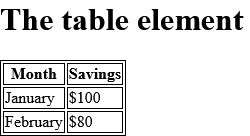
How to add collapsed borders to a table (with CSS) on HTML <table> Tag
Table with Collapsed Borders.
index.html
 <html>
<head>
<style>
table, th, td {
  border: 1px solid black;
  border-collapse: collapse;
}
</style>
</head>
<body>

<table>
  <tr>
    <th>Month</th>
    <th>Savings</th>
  </tr>
  <tr>
    <td>January</td>
    <td>$100</td>
  </tr>
  <tr>
    <td>February</td>
    <td>$80</td>
  </tr>
</table>

</body>
</html> Output should be:

How to right-align a table (with CSS) on HTML <table> Tag
This is some text to be wrapped around the table. This is some text to be wrapped around the table. This is some text to be wrapped around the table.
index.html
 <table style="float:right">
  <tr>
    <th>Month</th>
    <th>Savings</th>
  </tr>
  <tr>
    <td>January</td>
    <td>$100</td>
  </tr>
  <tr>
    <td>February</td>
    <td>$80</td>
  </tr>
</table> Output should be:

How to center-align a table (with CSS) on HTML <table> Tag
To center a table, set left and right margin to auto.
index.html
<!DOCTYPE html>
<html>
<head>
<style>
table, th, td {
  border: 1px solid black;
}
table.center {
  margin-left: auto;
  margin-right: auto;
}
</style>
</head>
<body>

<h1>Center a Table</h1>
<p>To center a table, set left and right margin to auto:</p>

<table class="center">
  <tr>
    <th>Month</th>
    <th>Savings</th>
  </tr>
  <tr>
    <td>January</td>
    <td>$100</td>
  </tr>
  <tr>
    <td>February</td>
    <td>$80</td>
  </tr>
</table>

</body>
</html>Output should be:

How to add background-color to a table (with CSS) o HTML <table> Tag
background-color to a table (with CSS)
index.html
 <table style="background-color:#00FF00">
  <tr>
    <th>Month</th>
    <th>Savings</th>
  </tr>
  <tr>
    <td>January</td>
    <td>$100</td>
  </tr>
  <tr>
    <td>February</td>
    <td>$80</td>
  </tr>
</table> Output should be:

How to add padding to a table (with CSS) on HTML <table> Tag
See Example.
index.html
<!DOCTYPE html>
<html>
<head>
<style>
table, th, td {
  border: 1px solid black;
}

th, td {
  padding: 10px;
}
</style>
</head>
<body>

<h1>Add Padding to a Table</h1>

<table>
  <tr>
    <th>Month</th>
    <th>Savings</th>
  </tr>
  <tr>
    <td>January</td>
    <td>$100</td>
  </tr>
  <tr>
    <td>February</td>
    <td>$80</td>
  </tr>
</table>

</body>
</html>Output should be:

How to set table width (with CSS) on HTML <table> Tag
Add a Specific Width to a Table.
index.html
 <table style="width:400px">
  <tr>
    <th>Month</th>
    <th>Savings</th>
  </tr>
  <tr>
    <td>January</td>
    <td>$100</td>
  </tr>
  <tr>
    <td>February</td>
    <td>$80</td>
  </tr>
</table> Output should be:

How to create table headers using HTML <table> Tag
There are two examples.
- Horizontal headers.
- Vertical headers.
index.html
 <table>
  <tr>
    <th>Name</th>
    <th>Email</th>
    <th>Phone</th>
  </tr>
  <tr>
    <td>John Doe</td>
    <td>[email protected]</td>
    <td>123-45-678</td>
  </tr>
</table> Output should be:

How to create a table with a caption on HTML <table> Tag
The caption element
index.html
 <table>
  <caption>Monthly savings</caption>
  <tr>
    <th>Month</th>
    <th>Savings</th>
  </tr>
  <tr>
    <td>January</td>
    <td>$100</td>
  </tr>
  <tr>
    <td>February</td>
    <td>$80</td>
  </tr>
</table> Output should be:

How to define table cells that span more than one row or one column
Colspan and rowspan
index.html
 <table>
  <tr>
    <th>Name</th>
    <th>Email</th>
    <th colspan="2">Phone</th>
  </tr>
  <tr>
    <td>John Doe</td>
    <td>[email protected]</td>
    <td>123-45-678</td>
    <td>212-00-546</td>
  </tr>
</table> Output should be:

How to set Default CSS Settings on HTML <table> Tag
Most browsers will display the <table> element with the following default values.
index.html
<!DOCTYPE html>
<html>
<head>
<style>
table {
  display: table;
  border-collapse: separate;
  border-spacing: 2px;
  border-color: gray;
}
</style>
</head>
<body>

<table>
  <tr>
    <th>Month</th>
    <th>Savings</th>
  </tr>
  <tr>
    <td>January</td>
    <td>$100</td>
  </tr>
  <tr>
    <td>February</td>
    <td>$80</td>
  </tr>
</table>

</body>
</html>Output should be:

| html table |
Type: | Develop |
Category: | Web Tutorial |
Sub Category: | HTML Tag |
Uploaded by: | Admin |
Read Articlehttps://develop.horje.com/learn/1434/reference